Feeding a still image to an AI and getting a moving shot back is the most useful thing generative video currently does. You control the composition, the lighting and the subject, and the model only has to handle the motion. That is a far smaller ask than conjuring a scene from a sentence, and the results show it.
What no round-up tells you is how little of that motion you actually direct. The marketing implies you describe a camera move and get it. In practice, prompt-based motion control is the weakest lever on the panel, and the tools that give you real control do it through reference inputs rather than better adjectives. That distinction runs through this whole guide.
The other thing to know before you compare anything: OpenAI discontinued the Sora web and app experiences on 26 April 2026, with the API following on 24 September 2026. Any list still ranking Sora among the best image to video generators is stale. Everything below is live and taking payment as of August 2026.
Nine image-to-video generators worth your money, with the free tier and the honest entry price beside each.
Best overall
Google Veo 3.1
Best overall image-to-video
Free daily credits / $19.99 per mo
Runner-up
Runway Gen-4.5
Best value per usable second
Free / $12 per mo billed annually
Third pick
Kling
Best real motion control
Paid tiers available; pricing not published to automated checks
01
Google Veo 3.1
Best overall image-to-video
Reached through Google Flow, Veo 3.1 turns a still into a 4, 6 or 8 second clip and generates matching audio in the same pass, which almost nothing else does. Google publishes its credit costs openly, so you can budget properly. The Quality tier costs 100 credits per clip against 20 for Fast, and that gap matters more than any quality difference on a draft.
Free tier: Free daily Flow credits that expire each day and are forfeited the moment you upgrade
Free daily credits / $19.99 per mo
02
Runway Gen-4.5
Best value per usable second
Runway publishes 12 credits per five seconds on Gen-4.5, which makes it the cheapest serious option per finished second on this page. You also get inpainting, restyling and background tools around the generation, so a near-miss can sometimes be repaired rather than regenerated. Paid plans export at 1080p with no watermark; Max adds ProRes and HDR.
Free tier: 125 credits granted once, not a monthly refill
Free / $12 per mo billed annually
03
Kling
Best real motion control
Kling is the one to pick when you need the motion to do something specific. Alongside prompting it offers a motion brush, camera movement controls, start and end frame conditioning, and a reference-video motion transfer mode that copies choreography onto your character. Clips run 5 or 10 seconds in standard or professional mode. Its pricing table renders only in a browser, so confirm the current figure yourself.
Free tier: A small ongoing free allowance, with longer queue times
Paid tiers available; pricing not published to automated checks
04
Adobe Firefly Video
Best for commercially safe output
Firefly is the only tool here that tells you what its models learnt from. Adobe says its commercial models were trained on licensed Adobe Stock, openly licensed and public domain content, and that it does not train on subscribers’ personal files. Standard buys 2,000 generative credits a month. If a client, broadcaster or legal team will review your work, that provenance is the feature you are buying.
Free tier: A limited free allowance; Adobe lists credit figures only for paid tiers
Free / $9.99 per mo
05
Pika
Best cheap watermark-free entry
Pika is the cheapest way to get watermark-free output, but read the tier carefully: the $8 Basic plan removes the watermark and still caps you at 480p and five seconds. Standard at $28 is where 1080p and ten-second clips appear, along with 700 credits. Pikaframes stretches sequences to 20 or 25 seconds at a much higher credit cost. Commercial use is permitted on all plans.
Free tier: 80 credits a month, 480p, watermarked, five-second clips
Free / $8 per mo
06
Luma Ray
Best for iterating on a scene
Luma sells larger credit pools than most, with 10,000 a month on the Plus plan, and its agent tooling is aimed at people refining one scene repeatedly rather than firing off one-offs. Commercial use is granted on every published plan. The entry price is higher than Runway or Pika, so it earns its place only if you generate in volume.
Free tier: Trial only in practice; the published plans all start paid
From $25 per mo billed annually
07
Higgsfield
Best camera-move presets
Higgsfield built its reputation on named camera moves — dolly, crash zoom, orbit, bullet time — applied as presets rather than described in prose. If your problem is that models ignore your camera direction, presets solve it more reliably than better prompting will. The trade-off is that you are choosing from a menu rather than directing freely, and the plan terms move around.
Free tier: Free daily credits have been offered, but terms change frequently
Paid tiers available; pricing not published to automated checks
08
Canva AI
Best for non-specialists
Canva animates a still inside the same workspace your team already uses for decks and social posts, which removes the export-and-reimport dance entirely. Quality trails the dedicated models and control is minimal. Usage is counted as standard, premium and ultra AI uses rather than credits, which makes forecasting a team budget harder than it should be.
Free tier: Up to 200 standard AI uses or 20 premium AI uses
Free / $15 per mo billed annually
09
Hailuo
Best for physical realism
MiniMax’s Hailuo models are consistently praised for weight and momentum — cloth, hair and body movement that behaves like matter rather than animation. MiniMax also ships open-weight models, so the same family can be run through third-party hosts if you would rather pay per generation than subscribe. Its consumer pricing page does not expose figures to automated checks.
Free tier: A free allowance is offered; terms are not published openly
Paid tiers available; pricing not published to automated checks
Best AI image to video tools compared at a glance9 tools
#
Tool
Best for
Free tier
Price
01
Google Veo 3.1
Best overall image-to-video
Free tier
Free daily credits / $19.99 per mo
02
Runway Gen-4.5
Best value per usable second
Free tier
Free / $12 per mo billed annually
03
Kling
Best real motion control
Free tier
Paid tiers available; pricing not published to automated checks
04
Adobe Firefly Video
Best for commercially safe output
Free tier
Free / $9.99 per mo
05
Pika
Best cheap watermark-free entry
Free tier
Free / $8 per mo
06
Luma Ray
Best for iterating on a scene
Trial only
From $25 per mo billed annually
07
Higgsfield
Best camera-move presets
Free tier
Paid tiers available; pricing not published to automated checks
08
Canva AI
Best for non-specialists
Free tier
Free / $15 per mo billed annually
09
Hailuo
Best for physical realism
Free tier
Paid tiers available; pricing not published to automated checks
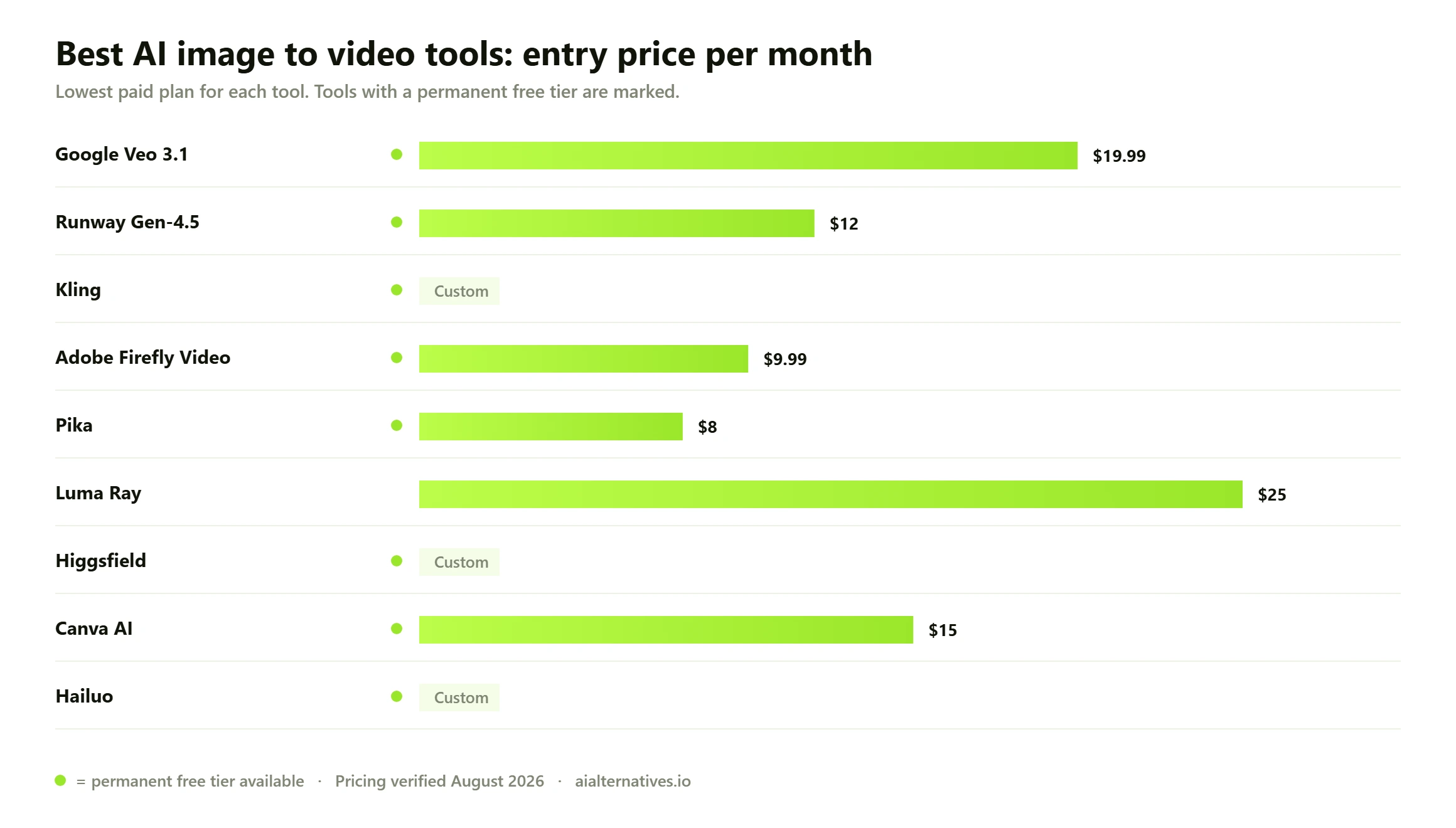
Entry price against free-tier generosity across the nine image-to-video tools on this shortlist. Figures read from each vendor’s own pricing page in August 2026; three vendors do not publish theirs openly.
How much motion control you actually get
Every vendor page shows a still becoming a graceful dolly shot and implies you asked for it in words. Ranked by how much control they really give you, the levers look like this, and prompting sits at the bottom.
Control method
What it does
How reliable
Where you find it
Reference video motion transfer
Copies choreography from a clip you supply onto your character
Highest — the motion is not being invented
Kling motion control modes
Start and end frame
You supply both ends, the model fills the middle
High — the destination is fixed
Kling, Luma, Runway
Motion brush or mask
You paint which region moves and roughly where
Good for isolated subject motion
Kling, Runway
Named camera presets
Dolly, orbit, crash zoom picked from a menu
Good, but you take what is on the menu
Higgsfield, Kling camera controls
Prompt describing motion
You write what should happen and hope
Lowest — routinely ignored or reinterpreted
Every tool
This is not a hostile reading. Kling says so in its own quickstart documentation, advising simple sentence structures and warning that complex physical movement, such as a bouncing ball or the arc of a thrown object, remains difficult to generate. Guidance for its motion-control mode goes further and tells you to stop describing movement in the prompt altogether once a reference video is attached, because the reference already defines it and over-describing motion is the most common mistake people make.
The practical takeaway: if the motion matters, choose a tool with reference-driven control and budget time to prepare that reference. If you only need something to breathe gently, prompting is fine and the cheapest tool wins.
How we verified this Prices, credit allowances, watermark rules, clip lengths and export limits on this page were read from each vendor’s own pricing page, plans page or product documentation between 22 and 27 August 2026. Three vendors here — Kling, Higgsfield and Hailuo — render pricing only through client-side JavaScript that automated checks cannot read, so rather than copy a figure from another blog we mark those as not published and tell you to confirm on the vendor page. The Sora dates come from OpenAI’s own support notice and the Veo credit costs from Google’s Flow documentation. We have not run a hands-on generation trial across these nine tools, and nothing here is offered as our own bench test; capability claims are attributed to vendor documentation, and community observations are labelled as aggregated reports.
What a usable second really costs
Credits are designed to obscure this. The number that matters is not credits per month, it is dollars per second of footage you would actually put in a video. Getting there needs one honest assumption: you throw most generations away. One keeper in three is a reasonable working figure for image-to-video, better than text-to-video because you have already fixed the composition, and worse than that whenever the brief is specific.
Plan
Monthly
Published credit cost
Raw seconds
Usable at 1 in 3
Per usable second
Runway Standard
$12 annually, 625 credits
12 credits per 5s, Gen-4.5
260s
about 87s
about $0.14
Google AI Pro, Veo 3.1 Fast
$19.99, 1,000 Flow credits
20 credits per 8s clip
400s
about 133s
about $0.15
Google AI Pro, Veo 3.1 Lite
$19.99, 1,000 Flow credits
10 credits per 8s clip
800s
about 267s
about $0.07
Google AI Pro, Veo 3.1 Quality
$19.99, 1,000 Flow credits
100 credits per 8s clip
80s
about 27s
about $0.74
Kling, Higgsfield, Hailuo
Not published
Not published
Not calculable
Not calculable
Not calculable
What the credit maths really costs Two conclusions come straight out of that table. The highest-quality Veo tier costs about ten times per usable second what the lite tier does, on the identical $19.99 subscription — so drafting on Lite or Fast and spending Quality credits only on a shot you have already composed and approved is the single largest saving available to you, larger than switching vendors. And Google states that unused monthly Flow credits do not roll over, while free credits are forfeited outright when you upgrade to a paid plan, so a quiet month is money burned. Size your tier for a slow month, then top up.
Watermarks, resolution and clip length by tier
The gap between a free tier that is genuinely useful and one that exists as a demo is wide here, and resolution is where people get caught. Pika illustrates it perfectly: paying $8 removes the watermark but leaves you at 480p and five seconds. 1080p is a $28 decision, not an $8 one.
Tool
Free tier
Watermark on free
Free resolution
Clip length
Google Veo 3.1
Daily Flow credits that expire each day
Not applied at the paid tiers
Up to 1080p, 4K upscale on Ultra only
4s, 6s or 8s
Runway
125 credits, granted once only
Watermark-free export is a paid benefit
Paid plans reach 1080p
5s and 10s generations
Pika
80 credits a month
Yes
480p
5s free, 10s on Standard
Kling
Small ongoing allowance, longer queues
Applied on the free tier
Standard and professional modes
5s or 10s
Adobe Firefly
Limited free generations
Yes
1080p on paid tiers
About 5s
Canva AI
200 standard or 20 premium AI uses
Not on standard exports
1080p
Short clips only
Luma Ray
Trial only in practice
Paid plans permit commercial use
1080p and above
Up to about 10s
Notice how many of these cap a single generation at five to ten seconds. That is the industry norm and it will not change soon. Anything longer than ten seconds is a sequence of generations stitched together, which means you also need an editor. Our guide to the best AI tools by category covers the assembly side, and the Canva alternatives page is worth a look if you want generation and editing under one roof.
Commercial use and training data
Two separate questions, and most round-ups conflate them. Does the licence permit commercial use, and was the model trained on material the vendor had the right to train on? The first is usually answered on the pricing page. The second is usually not answered at all.
Adobe is the outlier for transparency. It states its commercial Firefly models were trained on licensed Adobe Stock, openly licensed content and public domain content where copyright has expired, and that it does not train on subscribers’ personal files. Luma grants commercial use across its published plans, as does Pika. Most others permit it on paid tiers and stay quiet on provenance.
If you are producing work for a client, a broadcaster, or anything that carries a brand, the practical advice is unglamorous: keep a record of which model produced which asset and on which plan, and read the licence rather than the landing page. The same discipline applies to the stills you feed in — a generated image from an opaque model does not become clean because you animated it. The Midjourney alternatives and Photoshop alternatives pages cover provenance on the image side.
Getting more keepers out of the same budget
Aggregated across community threads, the same handful of habits separate people who find image-to-video useful from people who find it a money pit.
Fix the composition in the still. The model will not reframe for you. Crop, light and stage the image exactly as you want the first frame to look.
Ask for one motion, not three. Kling’s own guidance is subject plus movement, in plain words. Compound instructions are where generations fall apart.
Stay inside physics. Movement the model can plausibly infer from a static frame works. Thrown objects, bouncing, complex hand action do not.
Draft cheap, finish expensive. Compose on the lite or fast model, spend premium credits only on the shot you have already approved.
Prepare a reference if motion is the point. A rough phone clip of the movement beats an hour of prompt rewriting.
Generate shorter. A four-second clip costs less than an eight-second one and fails less often. Two short keepers beat one long near-miss.
What to check before you commit Before you enter a card, get answers to these. Does the free allowance refill, or was it a one-off grant dressed up as a plan? Do unused credits roll over? What is the published credit cost of one generation at the quality you will actually ship? What resolution does your specific tier export, and does removing the watermark also lift the resolution, or only the watermark? What is the maximum clip length on your tier? Is commercial use granted on the tier you are buying rather than only at the top? And is the headline price annual-only? Several vendors here advertise the annual rate, so paying month to month costs more than the number you first saw.
FAQ
Questions people actually ask
Which AI can generate a video from a photo?
Most of the major generative video models now do it, and image-to-video is generally their strongest mode. Google Veo 3.1 through Flow, Runway Gen-4.5, Kling, Adobe Firefly, Pika, Luma Ray and Hailuo all take a still and animate it. Runway is the cheapest per usable second on published figures, Veo adds matching audio in the same pass, and Kling gives you the most genuine control over how the subject moves.
What is the best free AI image to video generator?
Google Flow, because the free daily credits actually refill. Pika gives you 80 credits a month but caps free output at 480p with a watermark. Be careful with the plans that look free and are not: Runway grants 125 credits once and never again, and Luma is effectively trial-only. A one-off grant is a trial with better branding.
Is there a 100 per cent free AI video generator with no watermark?
Not in any sustained way. Free tiers either watermark the output, cap resolution, or hand you a one-off credit grant. The cheapest route to genuinely watermark-free output is Pika Basic at $8 a month, but read the small print — that plan still limits you to 480p and five-second clips. Removing the watermark and raising the resolution are two separate purchases at most vendors.
Why does the AI ignore my motion prompt?
Because prompt-based motion control is the weakest lever these models have. Kling’s own documentation recommends simple subject-plus-movement phrasing and states that complex physical motion, such as a bouncing ball or a thrown object, is still difficult to generate. If the movement matters, use a start and end frame, a motion brush, a camera preset, or a reference video. Those constrain the model instead of asking it politely.
How long can an AI image to video clip be?
Five to ten seconds on almost everything. Veo 3.1 produces 4, 6 or 8 second clips. Kling and Pika do 5 or 10. Some tools chain generations to reach 20 or 25 seconds at a much higher credit cost, and Kling’s video-oriented motion transfer mode stretches to 30. Anything longer is a sequence you assemble in an editor, not a single generation.
Can I still use Sora for image to video?
No. OpenAI discontinued the Sora web and app experiences on 26 April 2026, and the API is scheduled to shut down on 24 September 2026. If you have work still stored in the account, OpenAI’s support notice describes an export route through the sunset page, and it warns that data associated with Sora is permanently deleted after the final window closes. Do not build a workflow around it.
How much does it cost to make one usable clip?
On published credit costs and a realistic one-keeper-in-three rate, roughly $0.07 to $0.15 per usable second on the sensible tiers, rising to about $0.74 per usable second if you generate everything on Veo 3.1 Quality. A ten-second finished shot therefore costs somewhere between about seventy cents and seven dollars depending purely on which model tier you drafted on. Drafting cheap is not a small optimisation.
Is AI generated video safe to use commercially?
Licensing and provenance are different questions. Most vendors permit commercial use on paid plans, and Pika and Luma grant it across their published tiers. Provenance is murkier, and Adobe is the only one here that documents it, saying its commercial models were trained on licensed Adobe Stock, openly licensed and public domain content. For client or broadcast work, that transparency is usually worth the trade in raw quality.
Which tool gives the most realistic movement?
Hailuo is repeatedly singled out in community discussion for physical realism — cloth, hair and body weight that behaves like matter rather than animation. Veo 3.1 is the strongest all-rounder and the only one adding synchronised audio in the same generation. Kling wins when you need a specific movement rather than a convincing one, because it lets you supply the motion instead of describing it.
Do I need a separate editor as well?
Almost certainly. Because single generations top out around ten seconds, anything of real length is assembled from multiple clips, and that means trimming, matching and sound. Runway includes enough editing to patch a near-miss without regenerating, but for a finished piece most people export to a proper editor. Our best AI tools hub and comparisons cover that side of the workflow.
Next step
Work out the rest of your stack
An image-to-video model is only one part of the pipeline. These pages cover the stills you feed it and the editor you finish in.